
Best Free AI Transcription Tools That Turn Audio Into Text
Quick Answer
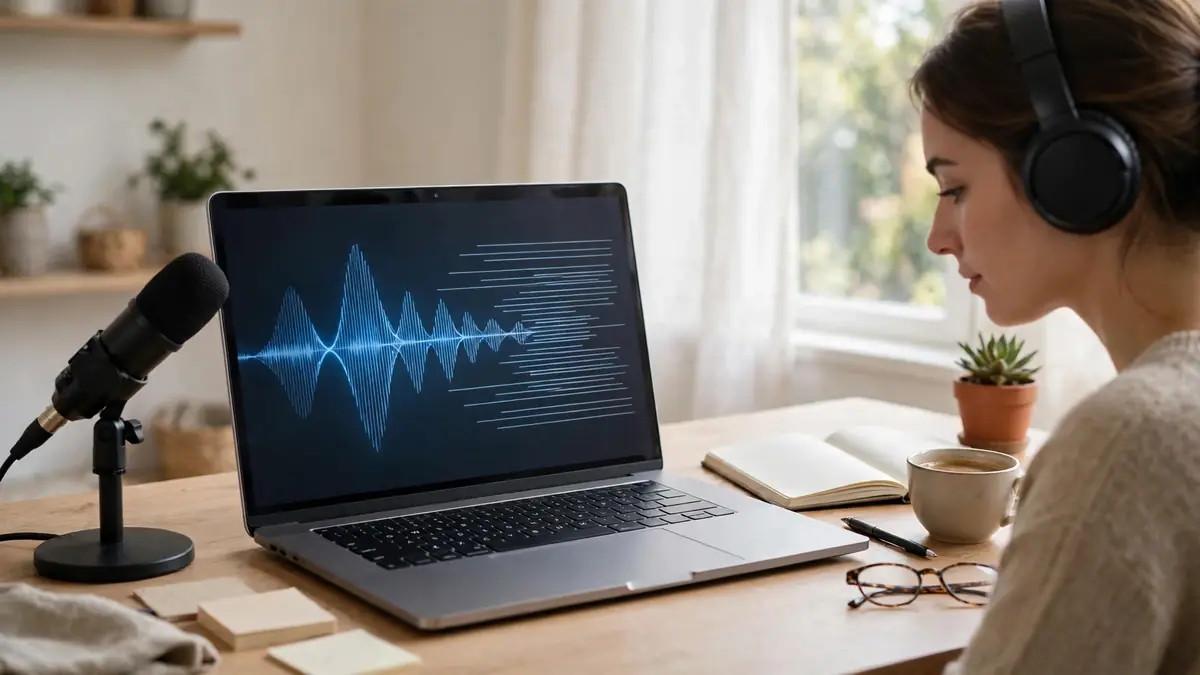
The best free AI transcription tools right now are Otter.ai for meetings, Whisper run locally for private unlimited transcription, Google Recorder on Pixel phones, TurboScribe for long files, Notta for other languages, and Descript when the transcript feeds an edit. All have genuinely useful free tiers. Match the tool to your job, record clean audio, and always proofread quotes before publishing.
Free transcription is finally good enough to trust
A few years ago, free transcription was a joke. You would upload an hour of audio and get back text that took longer to fix than typing it yourself. That changed when OpenAI released Whisper, a free open-source model that transcribes speech with near-human accuracy. Most of the best free tools today either run Whisper under the hood or have had to match it to stay relevant. The practical result is simple: record a meeting, interview, lecture, or voice memo in decent conditions, and you get back text that needs light cleanup instead of a rewrite. It still trips on heavy accents, crosstalk, and background noise. But for everyday jobs, free is now genuinely enough, and paid plans are for teams and power users.
Otter.ai: best for meetings and interviews
Otter is the tool most people mean when they say AI transcription. You connect it to Zoom, Google Meet, or Microsoft Teams, and it joins the call, transcribes live, and labels who said what. The free plan gives you limited monthly transcription minutes, enough for a handful of meetings. Limits change, so check the pricing page before you plan around it. What makes Otter worth trying first is the whole package: live captions during the call, a searchable transcript after, and automatic summaries that pull out action items. If your main need is turning work meetings into notes you can actually use, start here. The accuracy on clear conference audio is strong, and the speaker labels save you from the worst part of manual notes, which is figuring out who said the thing you half-remember.
- Joins Zoom, Meet, and Teams calls and transcribes live
- Labels speakers and generates meeting summaries
- Free plan covers a limited number of monthly minutes
- Searchable transcripts make old meetings findable
Whisper on your own computer: the private, unlimited option
If you do not want your audio uploaded anywhere, run Whisper yourself. The model is free and open source, and apps like MacWhisper put a simple interface on it for Mac users, with free options available for Windows and Linux too. Because everything runs on your machine, there are no minute limits, no subscriptions, and no privacy policy to read. The trade-off: your computer does the work, so speed depends on your hardware and setup takes more effort than signing up for a website. This is the right choice for sensitive audio: client interviews, legal or medical recordings, or anything you would hesitate to upload. It is also the right choice if you transcribe a lot and are tired of free-tier caps. Once it is set up, transcribing the tenth hour costs the same as the first: nothing.
Google Recorder: the best free transcription on a Pixel
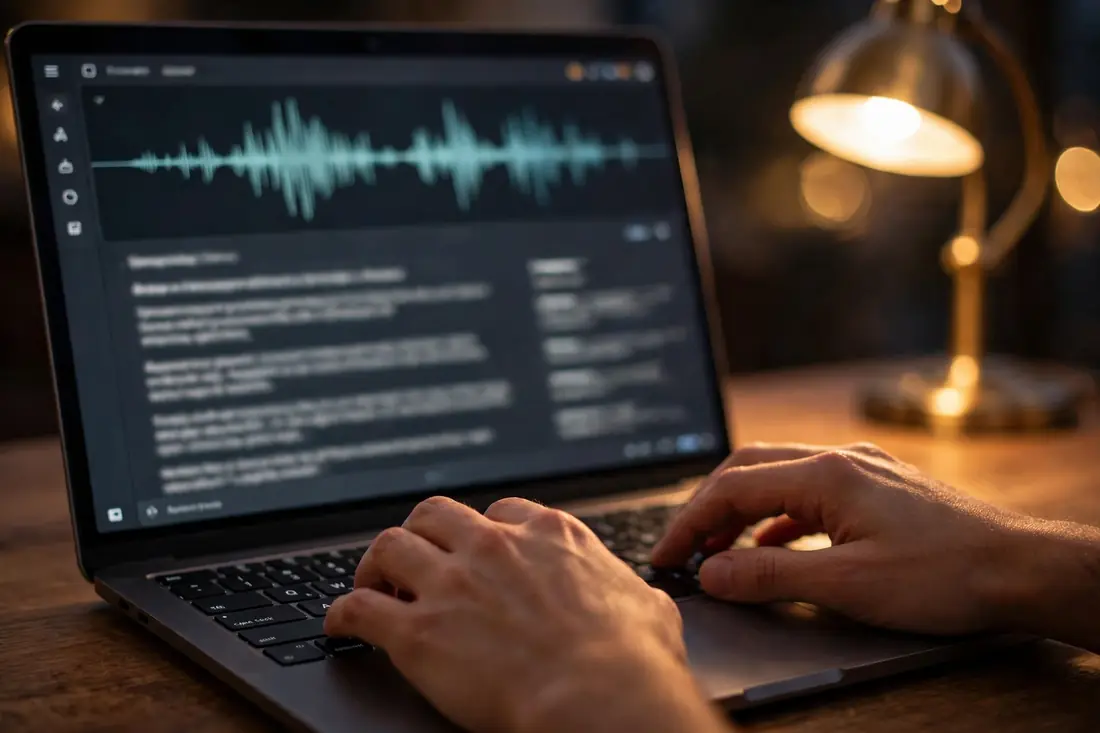
If you own a Google Pixel phone, you already have one of the best free transcription tools ever made. The Recorder app transcribes as you record, works fully offline, and costs nothing. It handles speaker labels reasonably well and lets you search the transcript for a word, then jump straight to that moment in the audio. The catch: it only runs on Pixel phones, so iPhone and Samsung owners are out of luck. It is also designed for in-person recording rather than uploading old files, though you can play audio into it in a pinch. For students recording lectures, journalists doing in-person interviews, or anyone who wants a pocket recorder that writes its own notes, it is hard to beat. Export the transcript as text when you are done and you have your notes.
TurboScribe: for long files you just want transcribed
Some jobs are not meetings at all. You have a two-hour podcast episode, a recorded webinar, or a folder of old interviews, and you just want text. TurboScribe is built for exactly that: upload audio or video files and get transcripts back fast, with support for a long list of languages. It offers a free tier covering limited transcription, enough to test on real work, with paid plans for heavier use. The interface is deliberately plain. There is no meeting bot and no collaboration layer, just upload, wait, and download your transcript. That simplicity is the selling point. If your transcription needs are occasional but the files are long, this beats tools that meter everything in meeting minutes. Check the current free limits before uploading a backlog, since they shift.
Notta: a strong pick when English is not the whole job
Most transcription tools treat English as the main event and other languages as a bonus. Notta flips that priority. It supports a wide range of languages and does a solid job with multilingual meetings where speakers switch back and forth. Like Otter, it can join your video calls and transcribe live, and it has a free plan with limited minutes so you can test it on your actual use case. The interface is clean and the transcripts export in the formats you would expect. If you work across languages, for clients, family, or research, Notta deserves to be on your shortlist ahead of the English-first tools. One honest note: no AI tool handles every accent equally well, so run a short test in your language pair before committing to important work.
Descript: when the transcript is the start of an edit
Descript is a different animal. It transcribes your audio or video, then lets you edit the media by editing the text. Delete a sentence from the transcript and it disappears from the recording. That makes it the favorite of podcasters and video creators who think in words rather than waveforms. The free plan includes a limited amount of transcription, enough to try the workflow on a real episode. It is overkill if you only need meeting notes, but if you produce a show, the time savings are hard to argue with. Accuracy is competitive, and the filler-word removal alone can turn an hour of rambling into something listenable. Try it if your end goal is a finished recording, not just a document.
How to get transcripts that need almost no cleanup
The tool matters less than the audio. A small improvement in your recording setup beats switching between free apps. Record in a quiet room, get the microphone close to whoever is speaking, and ask people not to talk over each other. If you are recording a call, use the platform's built-in recording rather than holding your phone up to a speaker. Say names and spell unusual terms the first time they come up, since every transcription engine guesses at proper nouns. Do a thirty-second test recording and read the transcript before the real session starts. These habits sound basic, which is exactly why most bad transcripts happen. Clean audio in means a clean transcript out, whatever tool you use.
- Record in a quiet room with the mic close to the speaker
- Ask people not to talk over each other
- Spell out names and unusual terms the first time
- Do a 30-second test and read the transcript first
- Use the call platform's recording, not a phone held to a speaker
What no free plan will do for you
Free plans are marketing: designed to show you the product, not run your business. Expect caps on minutes, limits on file length, and features like advanced exports or team workspaces held back for paying users. Limits also change, sometimes with little warning, so never build a workflow around a free tier without checking the pricing page first. Two more honest limits: speaker labeling falls apart when many people talk at once or the audio is messy, and no tool is reliable enough to publish quotes without listening back to the key moments. Treat every transcript as a draft. The tool does the typing, but you still own the accuracy, especially for anything with your name on it.
Picking the right tool in under a minute
Match the tool to the job and you will stop second-guessing. Your main need is meeting notes from Zoom or Meet: start with Otter. You care about privacy or you transcribe constantly: run Whisper on your own computer. You have a Pixel and record in person: Google Recorder is already in your pocket. Long files and many languages: try TurboScribe and Notta and keep the one that handles your audio better. You make a podcast or videos: Descript's text-based editing is worth learning. When in doubt, run the same five-minute sample through two tools and compare. The differences show up fast, and five minutes of testing beats an hour of reading reviews, including this one.
- Meeting notes from Zoom or Meet: start with Otter
- Privacy matters or you transcribe constantly: Whisper on your computer
- Pixel phone and in-person recording: Google Recorder
- Long files or many languages: test TurboScribe and Notta
- Podcast or video editing: Descript's edit-by-text workflow
✅ Guide4U Checklist
- Pick the tool that matches your main job
- Record in a quiet room, mic close
- Stop crosstalk; one speaker at a time
- Spell names and odd terms aloud once
- Run a 30-second test before recording
- Proofread every quote against the audio
- Check free-tier limits before relying on them
Key Takeaways
- Free transcription is now good enough for everyday work.
- Clean audio matters more than which app you pick.
- Every transcript is a draft until you proofread it.
Frequently Asked Questions
Are free transcription tools accurate enough for professional work?
For drafts, notes, and personal use, yes. For anything you publish or quote publicly, treat the transcript as a starting point and verify names, numbers, and key quotes against the audio. No AI transcription is perfect, and errors cluster exactly where accuracy matters most: proper nouns, technical terms, and figures. Budget a proofreading pass and the free tools will serve you well.
Is it safe to upload sensitive audio to free transcription tools?
Read the privacy policy before uploading anything confidential, because free plans sometimes allow the company to use your data to improve its models. For client interviews, legal matters, or health-related recordings, run Whisper locally on your own computer instead, so the audio never leaves your machine. When in doubt, ask the people being recorded what they are comfortable with.
What is the difference between a transcript and captions?
A transcript is a text document of everything said, meant for reading and searching. Captions are timed text synced to video, meant for watching. Many tools do both, and YouTube can generate captions from your upload automatically. If you need subtitles for a video, look for export options like SRT or VTT rather than a plain text transcript.
Can these tools transcribe languages other than English?
Yes. Whisper supports dozens of languages, and tools like Notta and TurboScribe are built with multilingual users in mind. Quality varies by language, with widely spoken languages doing best and less common ones producing more errors. Always run a short test in your language before relying on any tool for important work.
What did you think of this article? Share your opinion in the comments below — we would love to hear from you.