
Android Storage Full After Deleting? Fix It for Real

Quick Answer
Your deleted files are probably still sitting in trash bins, or a syncing app is restoring copies right back onto the phone. Empty the Trash in Files, Google Photos, and your gallery app, clear the cache of your biggest apps, and turn off media auto-download in WhatsApp — that combination fixes it for most people.
Why your storage still says full after you deleted everything
You'd think deleting two hundred photos would move the storage bar. On Android, though, deleting rarely means gone. Most apps send deleted files to their own trash bin, where they sit for days or weeks before being erased for real. Then there's syncing: if Google Photos is backing up, some phones restore a copy right after you delete it, which feels like the phone is working against you. I've done this dance myself — cleared what looked like plenty of room, then saw the same warning an hour later. The good news: every one of these traps has a fix, and knowing where storage actually hides makes the real cleanup faster than the deleting was.
The hidden stuff eating your space: thumbnails, cache, and duplicates
Photos and videos are the obvious suspects, but the quiet ones are often bigger. Gallery apps keep thumbnail files — tiny previews of your images — and in a large library these pile up fast. Then there's cache: temporary files that browsers and social apps build over months without asking. One social app alone can hold hundreds of megabytes of images you've scrolled past and forgotten. Duplicates are the third thief. Messaging apps save every forwarded video to your phone, even if you already have it, and the same birthday clip landing in five group chats exists five times. None of this shows in your gallery, so you keep blaming the photos you can see. They're only part of the story.
Empty every trash bin, not just one
This is the most common reason storage stays full, so it's worth doing right. Android has no single trash bin — nearly every app keeps its own, and emptying one doesn't touch the others. Start with the Files app, whose Trash holds screenshots and downloads, then Google Photos, where deleted items wait about 30 days before being erased. Samsung and Xiaomi galleries each keep their own Recycle Bin too, and cloud apps like Drive have Trash of their own. The whole sweep takes five minutes, and for most people this step alone recovers the space they thought they'd already freed.
- Files app: open Files, tap the menu, open Trash, empty it.
- Google Photos: Library, then Trash — deleted photos wait about 30 days.
- Gallery app: Samsung and Xiaomi keep a Recycle Bin in settings.
- Messaging apps: check WhatsApp and Telegram storage settings for deleted media.
- Drive and Gmail: empty their Trash too, or files sync back.
Clear cache vs. clear data: what each button really does
In Settings, under Apps, every app offers two similar buttons that do very different things. Clear cache deletes temporary files — saved images, preview data, half-loaded pages — and it's completely safe. Your logins, chats, and photos stay put; the app just rebuilds the cache as you use it. Clear data, sometimes called Clear storage, is the other one: it wipes the app's settings, accounts, and downloads, resetting it like a fresh install. Tap it on a game and your progress is gone; tap it on a banking app and you're signed out. So the rule is simple: clear cache freely, especially on browsers and social apps where it grows fastest. Only clear data if you're removing the app anyway or it's seriously misbehaving — and check your backups first.
Find the real space hogs in your storage settings
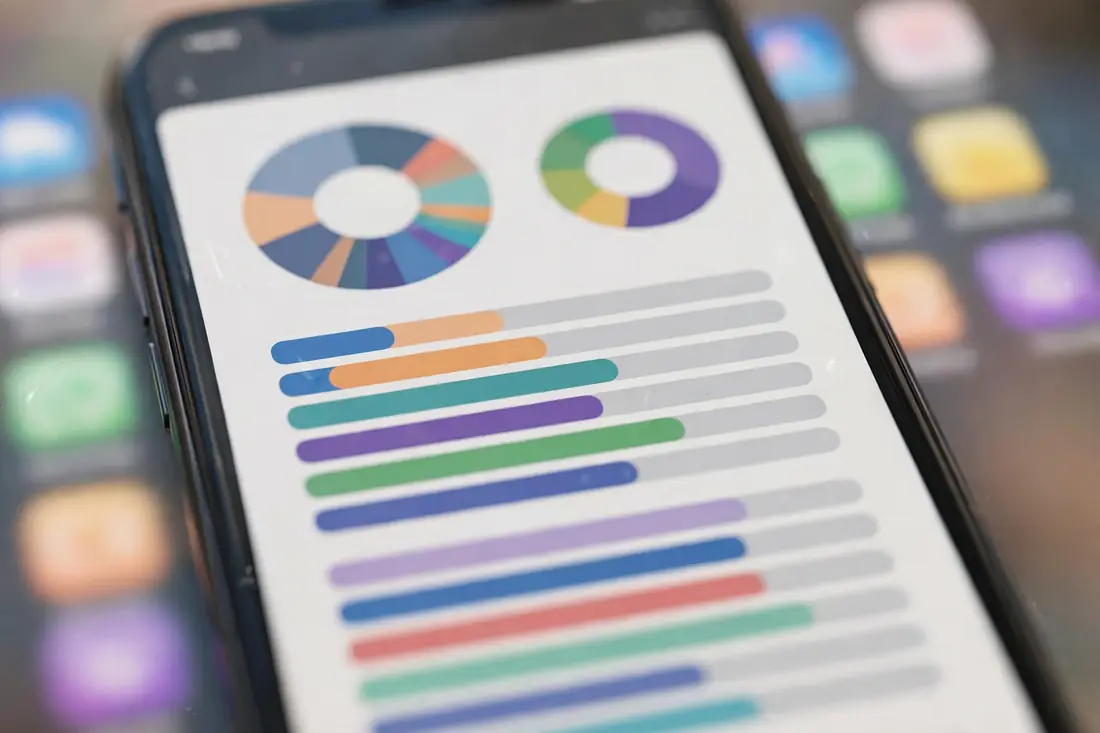
Stop guessing and look at the numbers. Open Settings, then Storage — on a Pixel it's right in the Settings list, on Samsung it's under Battery and device care, and on Xiaomi it's its own Storage entry. The breakdown shows exactly what apps, photos, videos, audio, and System are using, and most phones let you sort apps by size. This is where the truth lives. You'll usually find one or two apps far bigger than the rest, and tapping one shows the split between the app and its data. That's when people discover a video app holding gigabytes of offline downloads, or a music app that saved every playlist for offline listening. YouTube, Netflix, Spotify, and offline maps are the classic offenders — delete what you've already watched and the space comes back instantly.
WhatsApp and Telegram: the usual suspects
If you use WhatsApp daily, it's almost certainly one of your biggest storage hogs. Every photo, video, voice note, and document anyone sends you gets saved to your phone, and forwarded content gets saved again each time it passes through a new chat. Family group chats are the worst — the same birthday video lands in five groups and exists on your phone five times. Open WhatsApp's settings, go to Storage and data, then Manage storage, and you'll see your chats ranked by size. Turn off auto-download for media so new files stop piling up without your say-so, then delete the big forwarded videos you don't need. Telegram users should check its Data and Storage settings too, since it caches everything you view unless you set a limit.
Move your stuff out: the offload plan
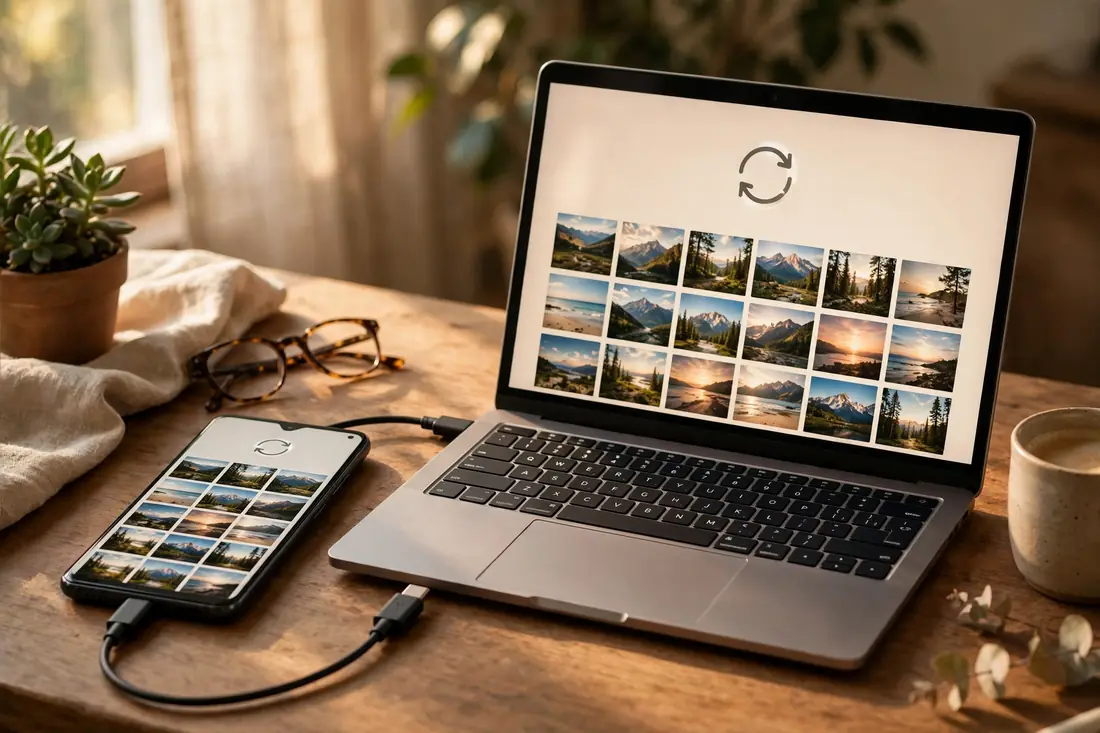
Sometimes the answer isn't deleting more — it's moving things somewhere they don't cost you space. Photos are usually the biggest category, so start there: if Google Photos backup is on, its Free up space option removes copies that are already safe in the cloud. For large videos, a USB cable and a computer is the most reliable route — drag the files over, confirm they're there, then delete them from the phone. USB-C flash drives work well too if your phone supports them. Some phones still take microSD cards, which are fine for photos and videos, though I'd keep apps off them since cards are slower. One rule for all of it: never delete the phone copy until you've confirmed the backup is real.
- Google Photos: back up, then use Free up space to remove phone copies.
- Copy big videos to a computer with a USB cable first.
- A USB-C flash drive works for quick transfers.
- Move photos to a microSD card if your phone has a slot.
- Confirm every backup exists before deleting anything from the phone.
Why "System" keeps growing, and what you can actually do about it
Every storage breakdown has a System section that seems to grow on its own, and it really does. System holds your operating system, security updates, and preinstalled apps plus their data, and each major Android update adds a little more. Those preinstalled apps — the ones your carrier or manufacturer bundled in — keep updating in the background even if you've never opened them, and their updates count against your storage. You can't delete System files directly, and you shouldn't try: touching them is how phones end up in boot loops. What you can do is fight back at the edges. For each preloaded app you don't use, open its app info, uninstall updates, and disable it — that reclaims the update data and stops future updates from piling on.
The last resort: a factory reset done right
When nothing else works, a factory reset always frees space, because it wipes the phone back to day one. But a reset done badly is how people lose photos and get locked out of accounts, so the backup steps matter more than the reset itself. Make sure Google's backup has actually run — open it and check the timestamp instead of assuming. Confirm Google Photos shows your recent pictures as backed up, and run a WhatsApp backup to Google Drive from inside the app. The step everyone forgets is the authenticator: export those codes first, because a reset locks you out of every account behind two-factor. Then reset, and set the phone up fresh — reinstalling only the apps you use keeps the problem from coming straight back.
- Settings, Google, Backup — confirm it's completed before anything else.
- Open Google Photos and check recent photos show as backed up.
- Back up WhatsApp chats to Google Drive from its settings.
- Export two-factor authenticator codes before the reset.
- Reset from Settings, System, Reset options, Erase all data.
Keep it clean so this never happens again
Fixing storage once is satisfying, but the real win is not doing this again in six months. The habits that keep a phone lean are small and boring, which is exactly why they work. Glance at your storage breakdown once a month — it takes seconds, and you'll spot the next hog before it becomes a problem. Keep media auto-download off in your messaging apps, since that's the tap that filled your phone while you slept. Review offline downloads in your streaming and music apps every few months, because nobody finishes every saved playlist. And back up photos regularly, using Free up space instead of the delete-and-panic cycle. Five small habits, and your phone stays comfortably roomy.
- Check storage once a month and clear big app caches.
- Keep auto-download off in WhatsApp and Telegram.
- Empty trash bins weekly instead of waiting.
- Delete watched offline downloads every few months.
- Back up photos, then use Free up space.
✅ Guide4U Checklist
- Empty trash in Files, Photos, and gallery apps
- Clear cache for the biggest apps first
- Turn off WhatsApp media auto-download
- Delete old offline downloads from streaming apps
- Back up photos, then free up space
- Uninstall updates on preloaded apps you ignore
- Reboot and check your storage breakdown
Key Takeaways
- Deleted files live in trash bins for weeks — empty every app's bin, not just one.
- Clearing cache is safe; clearing data resets the app, so know the difference.
- Back up first, then move or remove — never delete what you can't recover.
Frequently Asked Questions
I deleted a big batch of photos but only freed a tiny bit of space. Why?
Because the files usually aren't gone yet. Deleted photos sit in trash bins for days or weeks before being erased for real, and if a cloud app is syncing, it can restore copies right back onto the phone. Empty every trash bin first, pause auto-sync while you clean, and check again — the freed space shows up once the bins are truly empty.
Is it safe to clear the cache of all my apps at once?
Yes, it's safe. Cache files are temporary copies that apps rebuild on their own, so clearing them doesn't touch your logins, photos, or chats. Just don't confuse it with Clear data or Clear storage — that resets the app completely, wiping settings and downloads. When in doubt, clear cache first and see how much room you get.
Why does "System" storage keep getting bigger over time?
System storage grows because it holds your operating system, security updates, and preinstalled apps with their data. Every major update adds a little, and bundled apps you never open still update in the background. You can't delete System files, but you can uninstall updates and disable preloaded apps you ignore, which hands some space back.
Will a factory reset actually fix my storage problem?
Usually, yes — a reset wipes everything and starts clean, which clears stuck cache, leftover data, and misbehaving apps all at once. But if you restore from a full backup, the same bloated apps can come right back. The best result comes from resetting and setting up fresh, reinstalling only the apps you actually use.