
Laptop Fan Loud But Not Hot? Here's What to Do
Quick Answer
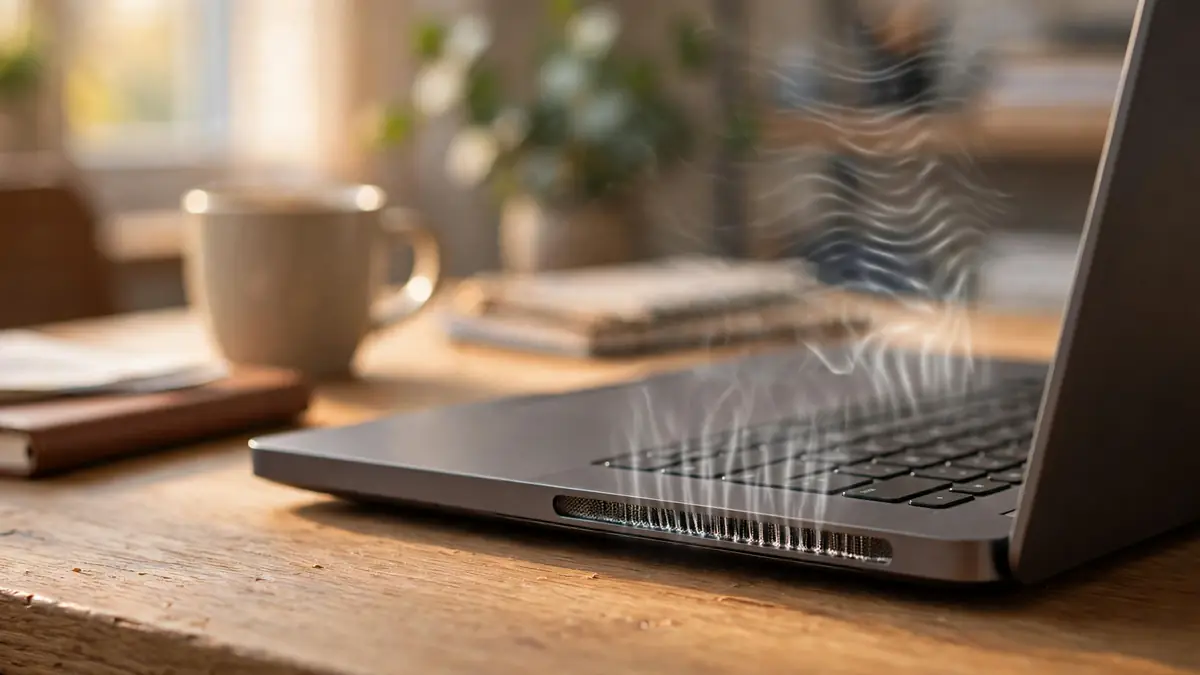
A loud fan on a cool laptop is usually software, not damage. Check Task Manager for hungry background apps, switch Windows to a Balanced power plan, and clean the vents with compressed air. Stop and get it serviced if the fan rattles or the case feels swollen.
Why a Fan Gets Loud When the Laptop Isn't Hot
A laptop's fan doesn't respond to how warm the keyboard feels under your fingers; it responds to tiny temperature sensors sitting right on the processor and the graphics chip. Those chips can jump twenty degrees in a few seconds when an app wakes up, a browser tab starts chewing through a video, or Windows decides to index your files in the background. The sensor sees the spike and spins the fan hard to catch it, then the heat spreads through the aluminum shell and everything settles. So a cool-feeling laptop with a roaring fan is usually a sign that the cooling system is working exactly as designed. I spent weeks convinced my old ThinkPad was dying before I realized the sensor was just doing its job a little too eagerly.
Start With Task Manager Before You Touch Anything
Nine times out of ten, the culprit is software, not hardware. Press Ctrl+Shift+Esc to open Task Manager, click the CPU column to sort by usage, and watch for a minute. A background app you've forgotten, an installer stuck at ninety percent, or a web page mining your processor in the background will sit right at the top of that list. On Windows 11 you can also check the Startup apps tab and disable anything you don't recognize or never use; plenty of these little helpers launch at boot and sip CPU all day. If the culprit turns out to be Windows Update, leave it alone, because interrupting an update can cause real damage. Let the fan roar through it and check back in half an hour.
Your Browser Is Probably the Loudest Thing in the Room
Modern browsers are full desktop computers pretending to be tabs. A single 4K YouTube video, a Twitch stream, or a web app like Figma can pin a laptop processor harder than some desktop software, and twenty open tabs multiply the damage. Extensions add to it: ad blockers and password managers are mostly fine, but a sketchy coupon extension or a crypto wallet helper can sip CPU constantly. Try working with half the tabs and watch the fan; if it settles within a couple of minutes, you've found your answer. Bookmark the rest instead of keeping them alive, and restart the browser daily so leaky tabs can't build up memory and CPU debt over days.
Check Your Power Plan Before You Blame the Hardware
Windows ships with a slider that directly controls how aggressively your machine heats up. Open Settings, go to System then Power and battery, and look at the power mode. Best performance tells the processor to hold high clock speeds at all times, which means more heat and a fan that never rests. Switch to Balanced or Best power efficiency and the machine caps those speeds; for email, documents, and web browsing you'll never feel the difference, and the fan often calms down within minutes. Laptops from Dell, Lenovo, and HP also ship with their own apps, like Dell Power Manager or Lenovo Vantage, where a Quiet or Cool mode can silence the fan further. This one setting has fixed more noisy fans than any screwdriver ever has.
Clean the Vents Without Damaging Anything
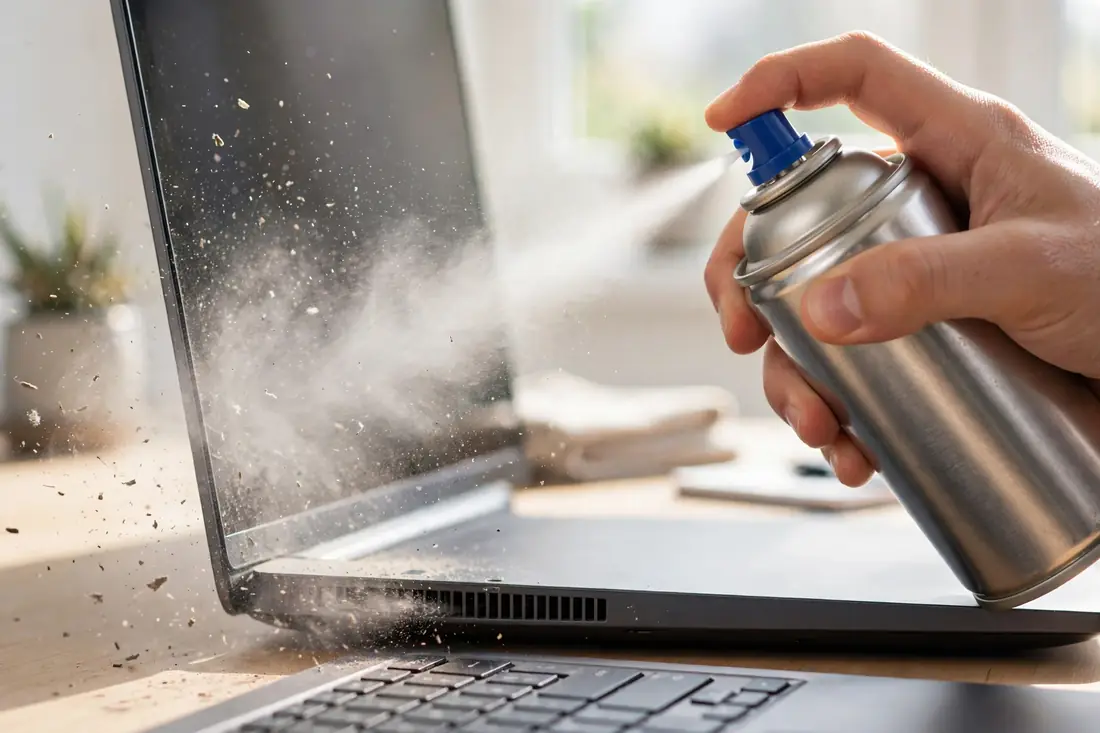
Dust is the slowest, most common fan killer there is. Over months, the exhaust fins behind the vents collect a felt-like mat of dust that chokes airflow, and the fan has to spin faster to push the same air through it. The safe fix is a can of compressed air: shut the laptop down, unplug it, and hold the fan still through the vent with a toothpick or folded piece of paper if you can see it, because letting it free-spin at high speed can wear the bearing. Use short bursts from about six inches away, angled so dust blows out rather than deeper in. Do this outside; a surprising amount of dust comes out. Never jam a vacuum nozzle against the vents, and skip the air compressor from the garage, which is far too forceful.
Look Under the Lid if You're Comfortable
If the machine is a few years old and cleaning the vents didn't help, the problem may sit deeper inside. On many laptops the heat sink fins are visible once you remove the bottom panel, and you'll sometimes find that same dust mat packed in there, easy to lift out with tweezers or a soft brush. This is also where experienced owners talk about repasting: the thermal paste between the processor and the heat sink dries out over years, gets worse at moving heat, and the fan compensates by screaming. Repasting genuinely helps older machines, but it means full disassembly, and there's no shame in skipping it. If opening the laptop makes you nervous, leave the panel on; a good vent cleaning plus the software fixes above solve most cases anyway.
Cooling Stands and Smarter Desk Habits
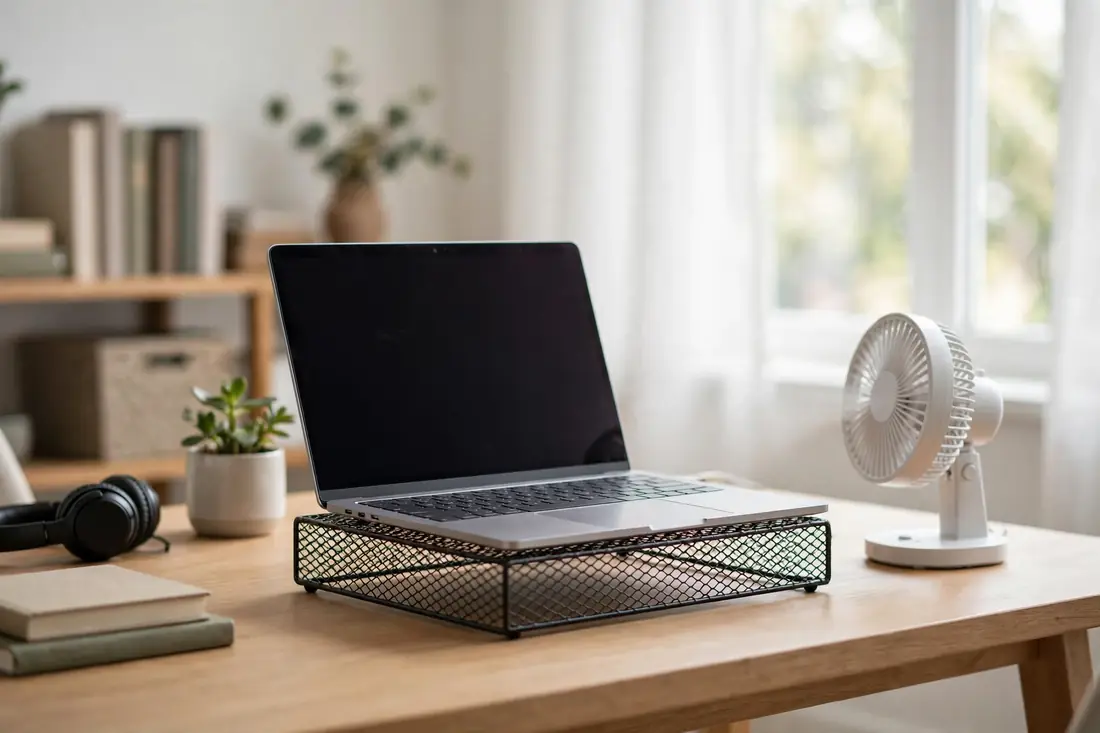
Laptops breathe through their bottoms and sides, which is exactly where most desks block the airflow. A simple stand that lifts the rear of the machine an inch or two opens the intake vents and can drop temperatures enough that the fan barely wakes up. Even without a stand, never run a laptop on a bed or couch: the fabric smothers the vents in minutes, and this alone explains a huge number of screaming-fan complaints. A small desk fan pointed across the machine helps too, and in summer just working nearer an air conditioner vent makes a real difference. I moved my own laptop off a cloth desk mat onto a hard stand and the fan noise dropped within ten minutes. Boring fixes like this tend to win.
Tweak the Fan Curve in BIOS or Your Vendor's App
Most laptops let you change how aggressively the fan responds to heat, though the setting hides in odd places. Lenovo Vantage and Dell Power Manager both offer a thermal or acoustic mode; pick Quiet and the fan tolerates higher temperatures before ramping up, trading a little warmth for a lot of silence. Some machines also expose a fan control or fan-always-on setting in the BIOS, reached by restarting and pressing F2 or Del; turning that off lets the fan fully rest at idle instead of humming along at low speed forever. Be careful not to set the fan too lazy while gaming or editing video, because the trade-off for silence is a hotter machine. Sustained heat is what actually shortens a laptop's life.
The Two Scary Causes: a Dying Fan and a Swelling Battery
Not every loud fan is innocent. A fan with a worn bearing makes a rattling, clicking, or grinding sound rather than a smooth whoosh, and it often changes pitch when you tilt the machine. That's a mechanical failure, and the fix is a replacement fan: a cheap part and a standard repair at any service shop, so don't keep using a grinding fan until it seizes and the machine overheats. The more serious danger is a swelling battery. If the bottom of the case feels spongy, the trackpad clicks on its own, or the laptop rocks on a flat table, the battery may be expanding and pressing everything out of shape. Stop using it, don't charge it, don't poke the battery, and take it to a service center promptly.
When to Take It to a Service Shop
If you've cleaned the vents, closed the background apps, and switched the power plan, and the fan is still roaring at idle, or if the noise is rattling rather than blowing, it's shop time. That's also true for any laptop still under warranty; opening it yourself can void the coverage, so let the manufacturer handle it. At the shop, ask them to check the fan bearing, re-paste the processor if it's an older machine, and verify the battery's condition. These three checks cover nearly every hardware cause, and most independent shops turn this around in a day or two. Nine times out of ten, though, one of the steps above will have already fixed it, and you'll have saved yourself the trip.
✅ Guide4U Checklist
- Open Task Manager and sort by CPU usage
- Switch power mode to Balanced or battery saver
- Shut down and blow vents with compressed air
- Lift the laptop on a stand for airflow
- Restart the browser and cut open tabs
- Stop and service a rattling fan or swelling battery
Key Takeaways
- Most loud fans are caused by software, not broken hardware
- A Balanced power plan and clean vents fix the majority of cases
- Rattling fans and swollen batteries need a service shop, not DIY
Frequently Asked Questions
Is it safe to use compressed air on a laptop fan?
Yes, as long as you power the laptop down first, hold the fan blade still through the vent with a toothpick or folded paper, and use short bursts from about six inches away. Holding the blade still matters because a free-spinning fan can over-rev and wear out its bearing. Do it outdoors if you can; the dust that comes out is impressive, and you don't want it settling right back into the machine.
Can a laptop be loud even when I'm doing nothing?
Absolutely. Windows Update, antivirus scans, cloud photo syncing, and browser tabs you forgot about can all pin the processor while you stare at an empty desktop. Open Task Manager, sort by CPU, and give it a minute; you'll usually spot the culprit sitting at the top of the list. If it's an update, just let it finish. Interrupting it can corrupt your system.
How long should a laptop fan normally last?
In everyday use, a laptop fan should run quietly for the machine's entire usable life; many go five to eight years without any attention. What usually kills them is dust and heat. Clogged vents force the fan to spin faster for years, which wears the bearing down. A quick vent cleaning once or twice a year is the single best way to keep yours lasting.
Should I use a cooling pad with built-in fans?
A passive stand that lifts the laptop usually beats a fan-equipped pad. Built-in pad fans add noise, draw power, and often blow air into the wrong spots. Raising the rear an inch or two opens the machine's own intake vents and lets its fan do the job quietly. Save the active cooling pads for gaming laptops that run genuinely hot under heavy loads.