
How to Clean a Laptop Screen Without Damaging It
Quick Answer
Power the laptop off and let it cool, wipe the screen dry with a clean microfiber cloth, then wipe again with the cloth barely dampened with distilled water. Never spray liquid on the screen, and never use ammonia cleaners, alcohol, or paper towels.
Start With the Screen Off and Cool
A laptop screen is easiest to clean when it is off, cool, and unplugged, so start there. Shut the laptop down fully, unplug the charger, and let the screen cool for a few minutes if it has been running warm. A dark, powered-off screen shows every fingerprint and smudge, which sounds like bad news but actually helps: you can see exactly what you are removing and whether you missed a spot. Working on a live screen is a bad idea for two reasons. First, you might tap something or change a setting while you wipe. Second, a warm screen dries cleaning moisture faster than you can wipe it off, which leaves streaks. Give it five minutes. It is the dullest step in this guide and the one that saves you from redoing the job.
Use a Clean Microfiber Cloth, Nothing Else
The cloth matters more than the cleaner. A clean microfiber cloth is the only thing that should touch your screen, because its fine fibers lift dust and oil instead of pushing them around. Paper towels feel soft but their wood fibers can leave tiny scratches on a glossy screen over time. T-shirts, dish towels, and tissues are worse: they shed lint and can drag grit across the glass. Keep one microfiber cloth just for the screen and wash it by hand with a drop of dish soap when it gets dirty, then let it air-dry. A cloth that has picked up sand or crumbs from another job will scratch the screen you are trying to save. If the cloth feels rough or stiff, retire it and grab a fresh one.
Dry-Wipe First to Lift Loose Dust
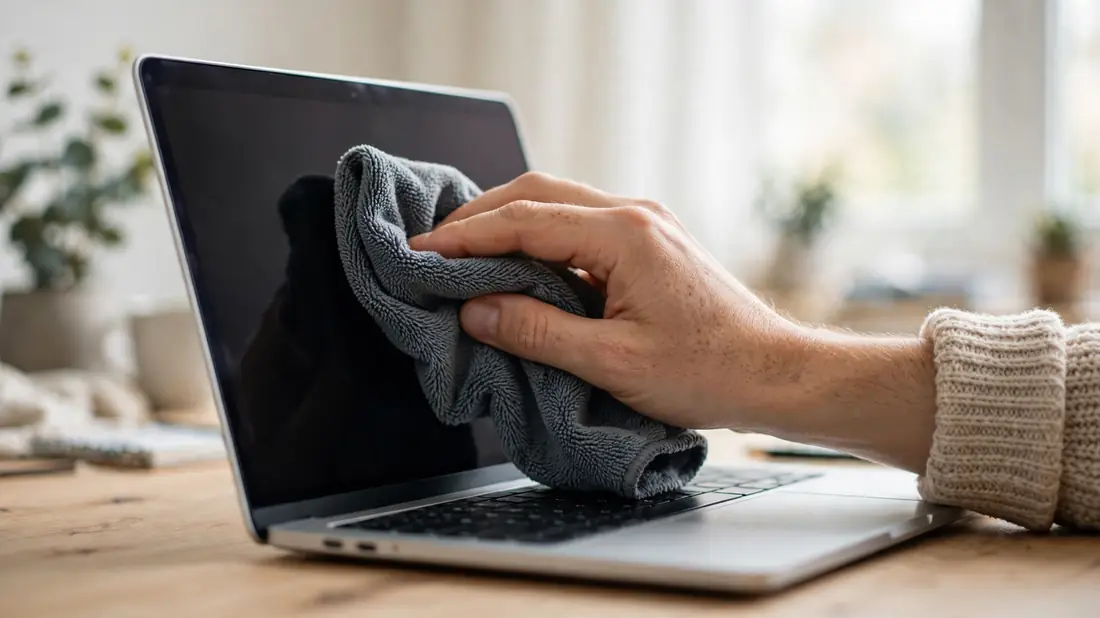
Before any water gets near the screen, wipe it dry. Fold the microfiber cloth into a small pad and sweep it across the screen in light, straight passes, top to bottom. This lifts loose dust and crumbs before they can turn into grit under a damp cloth. Pay extra attention to the bottom edge and the corners, where dust settles and where the screen meets the bezel. If you see a crumb or a speck of sand, flick it off with the corner of the cloth rather than dragging it across the glass. One careless drag is how most fine scratches happen, and they never come out. A dry wipe takes thirty seconds and removes about half of what you can see on the screen.
Dampen the Cloth, Never the Screen
If the screen still shows fingerprints after the dry wipe, add a little distilled water, and put it on the cloth, never on the screen. Hold the cloth away from the laptop and mist it lightly, or dip one corner in a small bowl of distilled water and wring it out until it is just damp. Distilled water is the right choice because tap water leaves mineral spots behind when it dries, especially in hard-water areas. Never spray liquid straight onto the screen: it can run down into the bezel, the hinge, or the keyboard, where it can reach parts that were never meant to get wet. A damp cloth gives you all the cleaning power you need, with none of that risk.
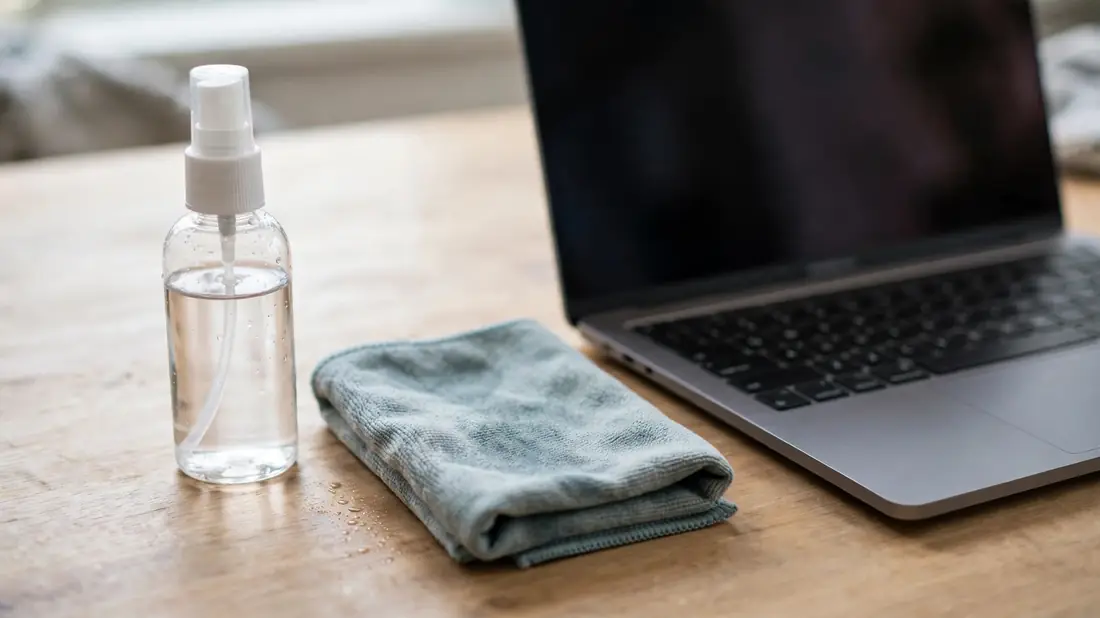
Wipe in Small Circles, Then Straight Lines
Work in small circles first, then finish with straight, overlapping passes. The circles lift fingerprints and smudges, and the straight passes keep the finish even so you do not end up with swirl marks. Use almost no pressure: let the cloth do the work, and let the dampness loosen the grime. Pressing hard does not clean faster, and on a laptop screen it can flex the panel or damage the thin layers behind the glass. If a section still looks cloudy, go over it again with a fresh fold of the cloth instead of bearing down. Finish by buffing the whole screen with the dry side of the cloth, top to bottom, until no damp patches remain.
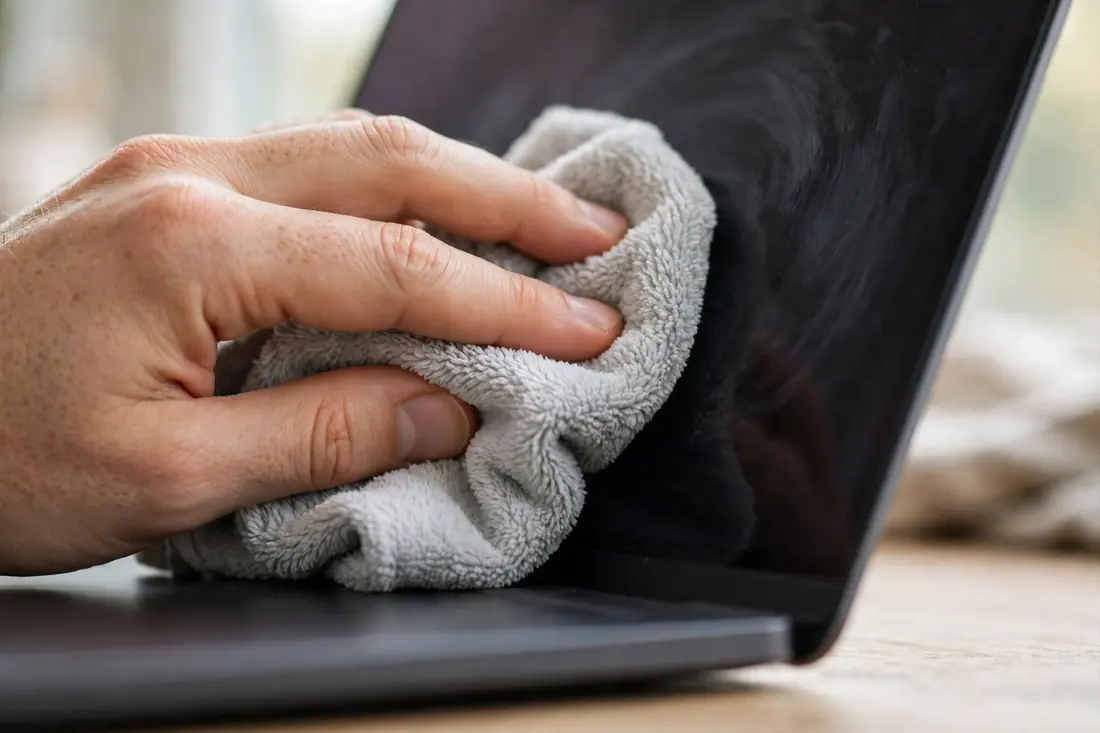
Tackle Stuck Spots With a Little Patience
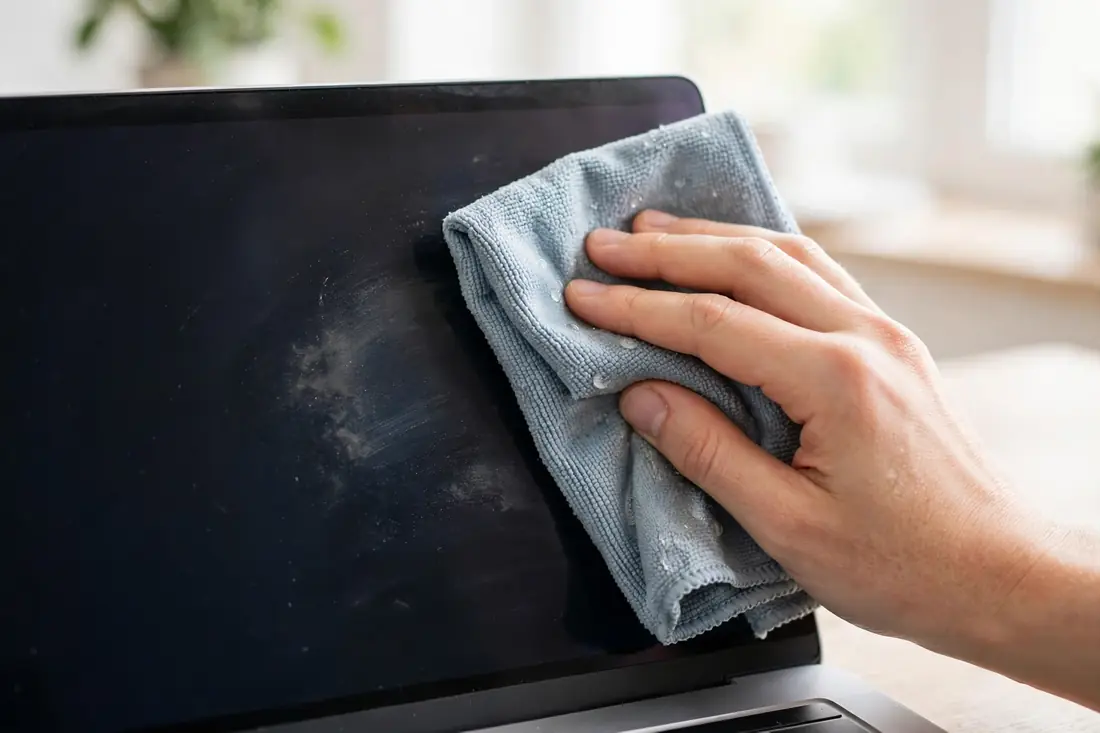
Some spots will not come off with one pass, and that is normal. A dried splash of coffee or a sticky fingerprint needs time, not force. Press the damp corner of your cloth against the spot and hold it there for ten to fifteen seconds, then wipe gently. The moisture softens the residue so it lifts off instead of smearing. Repeat two or three times if you have to. What you should never do is scrape at a spot with a fingernail, a card, or any tool: the screen's surface coating is thin, and one scrape can leave a permanent mark. If a spot still will not move after a few gentle tries, leave it alone and check your laptop manual, because some screens have coatings that need a specific cleaner.
What Never to Spray on a Laptop Screen
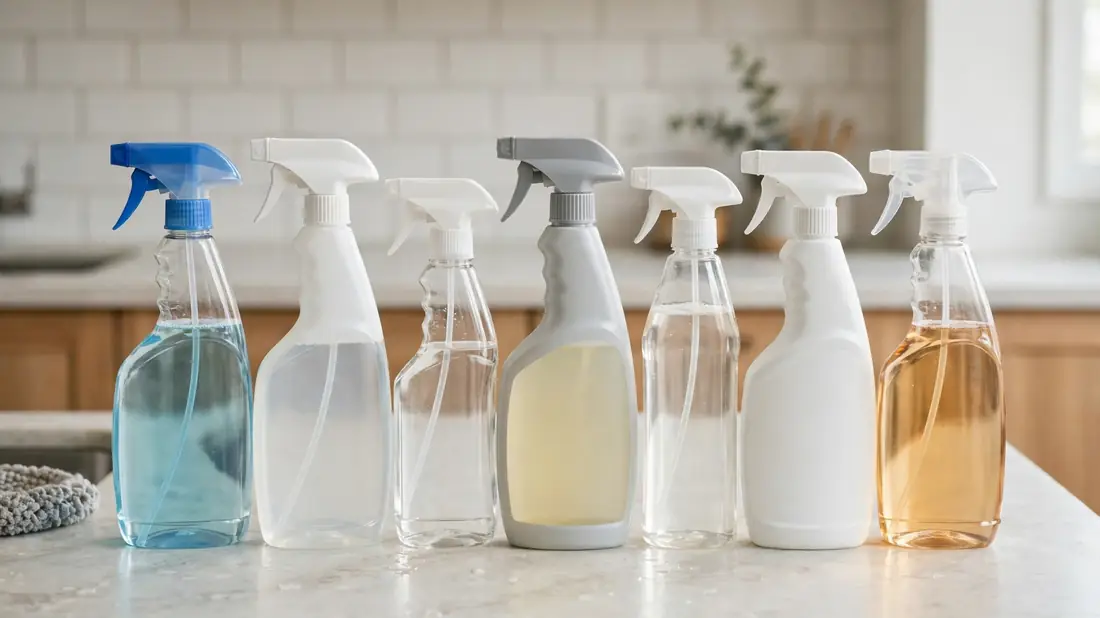
The fastest way to ruin a laptop screen is to clean it with the wrong product. Ammonia-based glass cleaners can strip the anti-glare coating that keeps reflections down, and once that coating is gone it cannot be put back. Rubbing alcohol and acetone are even harsher: they can cloud the surface or dissolve the coating outright. All-purpose sprays and dish soap leave a film that attracts more dust and shows up as streaks the next time the screen catches light. Even plain tap water is a poor choice when sprayed on directly, because the minerals in it dry into spots and the runoff can seep into the bezel. If a bottle does not say it is made for screens, keep it in the cupboard.
- Ammonia cleaners such as Windex
- Rubbing alcohol or hand sanitizer
- Acetone or nail polish remover
- All-purpose sprays and dish soap
- Tap water sprayed straight on the screen
Touchscreens Need the Same Gentle Touch
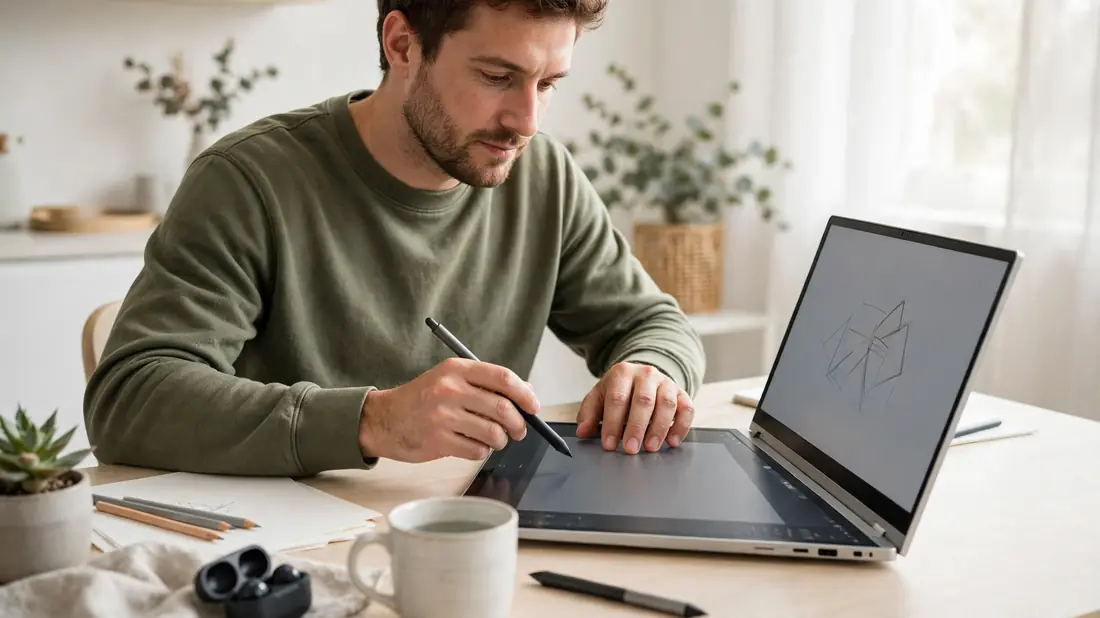
Touchscreens follow the same rules, with one extra habit to watch. The method is identical: power off, dry wipe, then a barely damp microfiber cloth, because a touchscreen has the same thin coating as any other laptop screen and the same dislike of ammonia and alcohol. The difference is that your fingers touch it all day, so it collects oil faster and needs cleaning more often. If you use a stylus, wipe its tip now and then too, because a dirty stylus tip drags grit across the glass. Some laptop makers sell a screen-safe cleaning spray for their own models; if yours does, that is the one exception to the water-only rule, and you should still spray it on the cloth, not the screen.
Clean the Keyboard and Vents While You Are at It
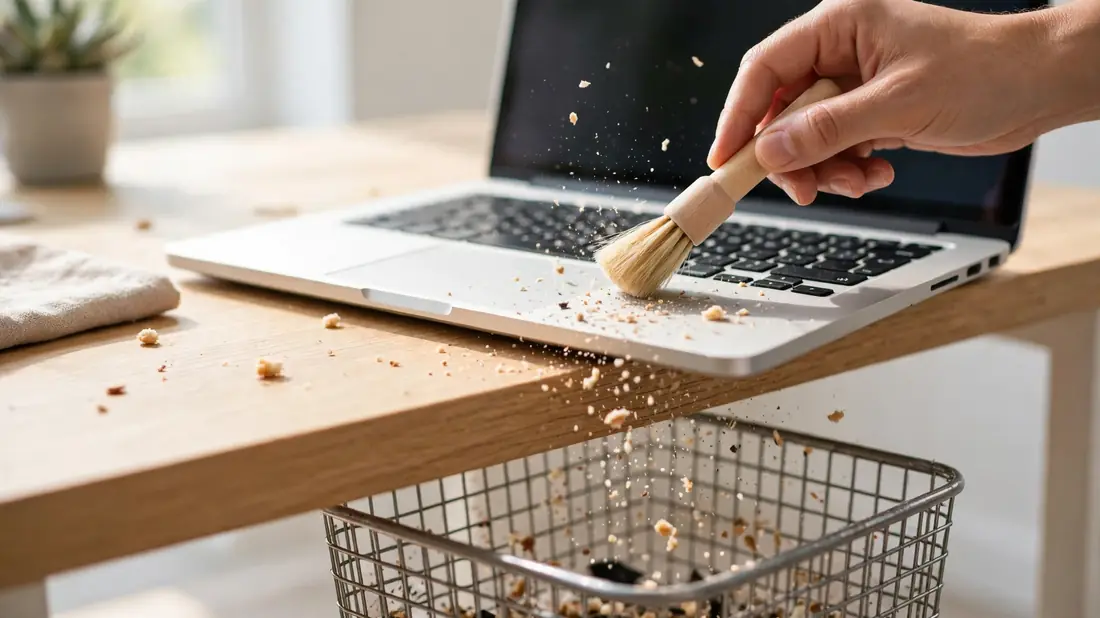
A dirty keyboard is half the reason a screen gets dirty, because every time you close the lid, the keys press against the glass and leave their oil behind. While you have the cloth out, give the keyboard a quick pass too. Turn the laptop upside down over a trash can and tap the base gently so crumbs fall out, then wipe the keys with the barely damp cloth. Use short bursts of compressed air on the vents if you have a can, holding it upright so no liquid sprays out. A thin microfiber sheet between the keyboard and the screen when you travel stops the key marks from coming back.
- Shake crumbs out over a trash can
- Wipe keys with a barely damp cloth
- Blow dust out of vents with short bursts
- Keep food and drinks away from the laptop
How Often to Clean It, and When to Stop
A quick dry wipe once a week and a damp clean once a month is plenty for most people. If you use the laptop outdoors, eat near it, or have kids who touch the screen, you might need the damp clean every couple of weeks instead. The warning sign to stop is a screen that stays cloudy or streaky no matter how gently you clean it, or a patch where the coating looks thin or rainbow-colored. That usually means the coating is worn or damaged, and no amount of cleaning will fix it. Check the manual or the maker's support page before trying any new product, and if the laptop is still under warranty, ask them first. A five-minute habit beats a new screen every time.
✅ Guide4U Checklist
- Power off and unplug first
- Use a clean microfiber cloth only
- Dry-wipe dust before any water
- Dampen the cloth, never the screen
- Use distilled water, not tap water
- Skip ammonia, alcohol, and acetone
- Buff dry top to bottom
Key Takeaways
- A microfiber cloth and distilled water are all a laptop screen needs.
- Spraying liquid on the screen risks the parts behind the glass.
- Ammonia and alcohol can strip the anti-glare coating for good.
Frequently Asked Questions
Can I use Windex on my laptop screen?
No. Windex and other ammonia-based glass cleaners can strip the anti-glare coating on a laptop screen. The damage is permanent and shows up as cloudy patches or uneven reflections. Stick to a clean microfiber cloth and a little distilled water, and only use a cleaner that is made for screens and approved by your laptop's maker.
Can I use tap water instead of distilled water?
You can in a pinch, but distilled water is better. Tap water contains minerals that dry into faint white spots, and those spots are more visible on a dark screen. A bottle of distilled water costs very little and lasts for months of screen cleaning, so it is worth keeping one near your desk.
How do I clean a laptop screen with a crack in it?
Do not clean it with liquid at all. Moisture can seep through the crack and reach the layers behind the glass, and wiping can make the crack spread. Back up your files, then take the laptop to a repair shop and ask about a screen replacement. Use an external monitor in the meantime if you need to keep working.
Why does my screen look streaky after I clean it?
Streaks usually mean too much water, a dirty cloth, or soap residue from a cleaner that was never meant for screens. Wipe the screen again with a clean, dry microfiber cloth, then buff it with a fresh, barely damp cloth and dry it right away. If the streaks survive that, the coating may be worn, and a repair shop can tell you for sure.
What did you think of this article? Share your opinion in the comments below — we would love to hear from you.