
How to Reduce Screen Time Without Deleting Your Apps: A Realistic Plan That Sticks

Quick Answer
You can cut screen time without deleting anything by making your phone less tempting and more deliberate: turn on grayscale, batch notifications with Focus modes, set realistic app limits, move tempting apps off your home screen, and give your phone a parking spot at home. Replace the scrolling gaps with things you actually enjoy, like reading or a short walk. Review your screen time weekly and tighten one small thing at a time.
Why Deleting Your Apps Almost Never Sticks
You have probably tried the nuclear option before. Fed up with your screen time report, you deleted the app eating your evenings, and felt genuinely proud of yourself for about three days. Then a friend sent a link you could not open, or you needed a group chat to confirm weekend plans, and the app came quietly back with a little guilt. That cycle is not a discipline problem, it is a strategy problem. Deleting an app treats every phone habit like it needs a hard cutoff, when most of it is just convenience. You reach for the phone because it is the easiest thing in arm's reach, not because you chose it. A plan that actually lasts does not take away the option. It makes the mindless choice harder and the intentional choice easier.
Face Your Real Numbers First
The average screen time report surprises almost everyone I know. Mine once showed four hours and forty minutes a day, which works out to about seventy full days a year spent staring at a six-inch rectangle, and I still thought I was a light user. Start with your own numbers first. On iPhone, open Settings, tap Screen Time, then See All Activity to find your daily average and your worst offenders by app. On Android, open Settings, then Digital Wellbeing and parental controls, and tap the dashboard chart. Write down three things: your daily average, your top three apps, and how many times you pick up the phone each day. Screenshot it if you want proof later. Those become your baseline, and every change you make from here gets measured against them instead of vibes.
Turn On Grayscale and Silence the Red Dots
Your phone is designed to keep you looking, and color is a big part of it. App icons are candy-colored, badges are red, and feeds are a buffet of saturated photos. Grayscale drains the color out at the display level, and the effect is immediate: your phone just looks boring, so your brain stops reaching for it on autopilot. On iPhone, go to Settings, then Accessibility, then Display and Text Size, then Color Filters, and switch on Grayscale. On Android, open Settings, then Digital Wellbeing, then Bedtime mode, and turn on Grayscale. After a few days of gray, the web feels less urgent too. Try these three for a week:
- Keep grayscale on all day, not just at night.
- Turn off the red notification badges in Settings.
- Move every social app off your home screen.
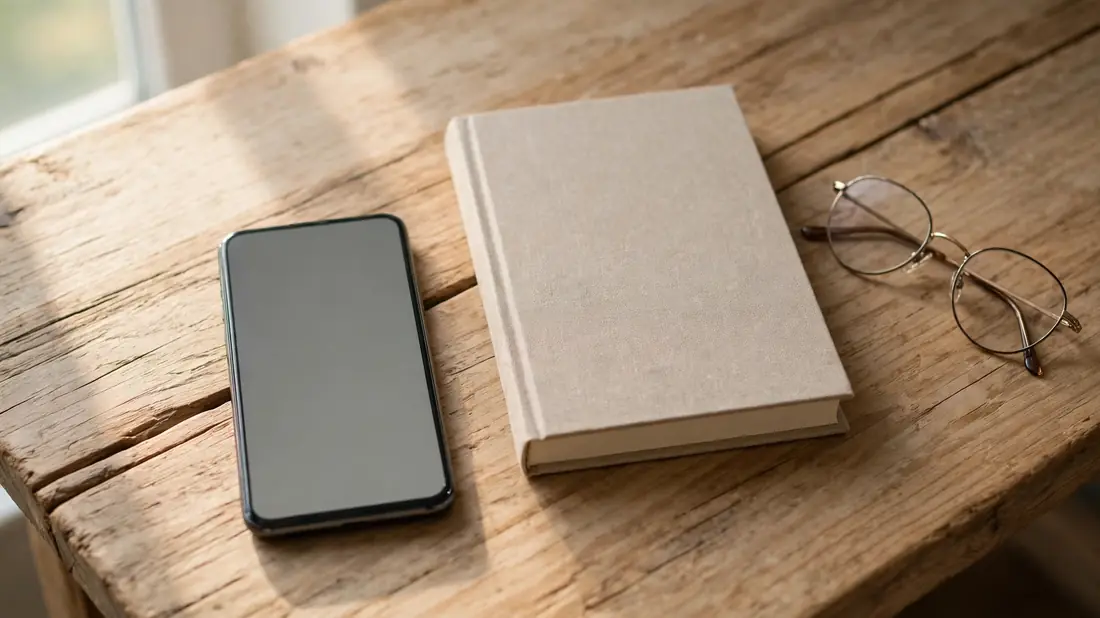
Redesign Your Home Screen, Not Your Willpower
Willpower loses to convenience every single time, so stop asking your willpower to do the heavy lifting. Redesigning your phone is like redesigning your kitchen: if the chips live on the counter and the fruit is behind the crisper drawer, guess what gets eaten. Move every app that steals your time into a folder on the second or third screen, or better yet, remove the icons entirely and open those apps only by typing their names in search. That tiny bit of friction, three seconds of typing, is enough to break the autopilot loop without blocking you when you genuinely need the app. Put the useful stuff front and center: your notes app, your calendar, the podcast player, the camera. Your phone becomes a tool again instead of a slot machine, and nothing got deleted.
Batch Your Notifications With Focus Modes
Every buzz and banner is a small robbery. It yanks your attention away from whatever you were doing, and it takes a while to get fully back on track. The fix is not silencing everything forever, it is batching the noise to arrive on your schedule. Both iPhone and Android let you schedule Focus or Do Not Disturb modes that hold all non-urgent notifications and deliver them in one bundle. Set up two or three quiet windows that match your life: deep-work hours in the morning, family time after dinner, and sleep. You will still see everything, just on your terms instead of theirs. A few settings worth your five minutes:
- Allow calls and texts from starred contacts only.
- Let notifications pile up and arrive every two hours.
- Keep work apps silent outside work hours.
Give Your Phone a Parking Spot
Here is the simplest trick in this article, and it costs nothing. Pick one spot in your home, a shelf, a drawer, a corner, and make it your phone's parking spot whenever you are not using it. Not in your pocket, not face-up on the couch cushion next to you, parked. The reason it works is friction: every pickup now requires a small deliberate decision, a stand-up-and-walk, instead of a reflex. Pair the parking spot with something you enjoy so the freed minutes do not feel like a punishment. Keep a paperback where your phone used to live, or a sketchbook, or just sit with your coffee and look out the window. It is never about willpower. It is a phone that is slightly out of reach and a life that is slightly more interesting.
Set App Limits You Will Actually Keep
App timers get a bad rap because most people set them up wrong, usually one vague limit they blow past by noon and then ignore. Set them like a budget: specific, realistic, and tied to your worst offenders. Start with limits just below your current average, not some fantasy number, so the first week feels doable, then tighten each limit by ten minutes every couple of weeks. On iPhone, go to Screen Time, then App Limits, and add limits per app or per category like Social. On Android, open the app info page for any app and set an App timer. Three rules that make them stick:
- Start generous: cut twenty percent.
- Require a passcode or a partner's PIN to extend a limit.
- Never set a limit on apps you need, like maps or banking.
Protect Your Mornings and Your Nights
The first and last hour of your day are when your phone does the most damage, because that is when your brain is most suggestible. Reaching for it in bed means your day starts on someone else's agenda, a headline or a stranger's opinion, instead of yours. And scrolling in bed pushes your sleep later and makes it shallower. You do not need a full digital detox to fix this, just two small rules. Charge your phone outside the bedroom, in the hallway or the kitchen, and buy a ten-dollar alarm clock if you need one. In the morning, give yourself thirty phone-free minutes: shower, coffee, a walk, whatever your morning looks like. At night, set a cutoff thirty minutes before bed and leave the phone at its parking spot. Two hours a day, protected.
Swap the Scroll for Something You Actually Enjoy
Deleting is easy; the hard part is the blank minutes where the scrolling used to be. Most people fail here because they remove the habit without replacing it, and boredom wins that fight. So do not just stop, swap. Notice when your heaviest scrolling happens: the couch after dinner, the commute, grocery lines. Those moments need a replacement that is ready before the urge arrives. Keep a book or a magazine on the coffee table instead of your phone. Start a journal and write for five minutes when the restlessness hits. Download a couple of podcast episodes for the commute so your ears are busy and your thumb is not. Call a friend instead of reading about strangers. A replacement does not have to be impressive. It just has to be closer than your phone.

Check In Once a Week and Keep Tweaking
None of this is set-and-forget, because your life is not set-and-forget. New apps show up, work gets stressful, a vacation blows up your routine, and suddenly the old habits creep back. That is normal, not failure. Once a week, pick a quiet five minutes, Sunday night works for a lot of people, and look at your screen time report again. Compare it to the baseline you wrote down at the start. If the number moved in the right direction, notice which change did the heavy lifting and keep it. If it crept back up, do not start over, just tighten one thing: one limit, one notification setting, one parking-spot rule. Small systems you maintain will beat a perfect plan you abandoned in February. This is a practice, not a project, and practices can be imperfect.
✅ Guide4U Checklist
- Check your Screen Time or Digital Wellbeing baseline today.
- Turn on grayscale and silence red notification badges.
- Move social apps off your home screen.
- Schedule two daily Focus modes for quiet hours.
- Set app limits ten minutes below current use.
- Park your phone outside the bedroom at night.
- Keep a book where your phone used to sit.
Key Takeaways
- Friction beats willpower: small barriers break the autopilot loop.
- Grayscale, batched notifications, and app limits work best together.
- Review weekly and tighten one habit at a time.
Frequently Asked Questions
Will I miss something important if I check my phone less?
No. Calls and texts still come through on every Focus mode with starred contacts allowed. When was your last truly urgent app message? Most people cannot name one. If your job or family needs to reach you fast, give them your number and keep the ringer on for calls. Everything else, group chats, likes, headlines, can wait for your next check-in.
How long does the urge to check your phone take to fade?
The first few days are the hardest, because your thumb has a routine and routines protest. After about a week the phantom urge usually fades, especially with grayscale and batched notifications. After a month, heavy scrolling tends to feel strange rather than fun. There is no magic number. The goal is to keep the systems running until the new defaults feel like nothing at all.
Is grayscale really helpful, or just a gimmick?
For most people, yes, and it is free, so a one-week test costs nothing. Color is one of the strongest hooks in interface design, and removing it makes feeds feel flat, which is exactly what you want. Paired with batched notifications and app limits, it removes a surprising amount of pull. If you edit photos for work, toggle it off and back on after.
What if my job keeps me on my phone all day?
Treat work and personal use separately, even on one device. Use Focus modes to allow only work apps during work hours, and silence them in the evening. Put personal scrolling into breaks instead of letting it leak through the day. The point is not zero phone time, it is phone time that belongs to you: work apps on a schedule, personal apps on a leash.