
How to Recover Deleted Photos from an iPhone Without a Backup

Quick Answer
If you deleted iPhone photos without a backup, first check the Recently Deleted album in Photos (photos stay 30 days), then iCloud.com, then Google Photos and other cloud apps, then message threads and Shared Albums for copies you sent. Keep phone use light while you try. Avoid paid recovery tools until free options fail, and never trust guaranteed-recovery claims.
Check the Recently Deleted album first
Open the Photos app, scroll to Utilities, and tap Recently Deleted. Apple holds your deleted photos and videos here for 30 days before wiping them for real. If your photos are there, select the ones you want, tap Recover, and they're back in your library in seconds. This one screen resolves the vast majority of "I deleted my photos" panics, so always start here. If you see them but the Recover button is greyed out, open the album with Face ID, Apple locks it by default. And if the photos aren't there at all, don't re-delete anything else; just move to the next steps.

Sign in to iCloud.com, your photos may be waiting there
Even if you never deliberately backed up, your photos might be sitting in iCloud right now. Visit iCloud.com on a computer, sign in with your Apple ID, and open Photos. If iCloud Photos was ever turned on, even briefly, or on an older phone, copies may still be there. Also check the Recently Deleted folder inside iCloud Photos, which has its own 30-day clock that runs separately from the one on your phone. I've seen people find photos in iCloud they deleted from their phone months ago because sync was off when they deleted them. It costs nothing to look, and it takes about a minute.
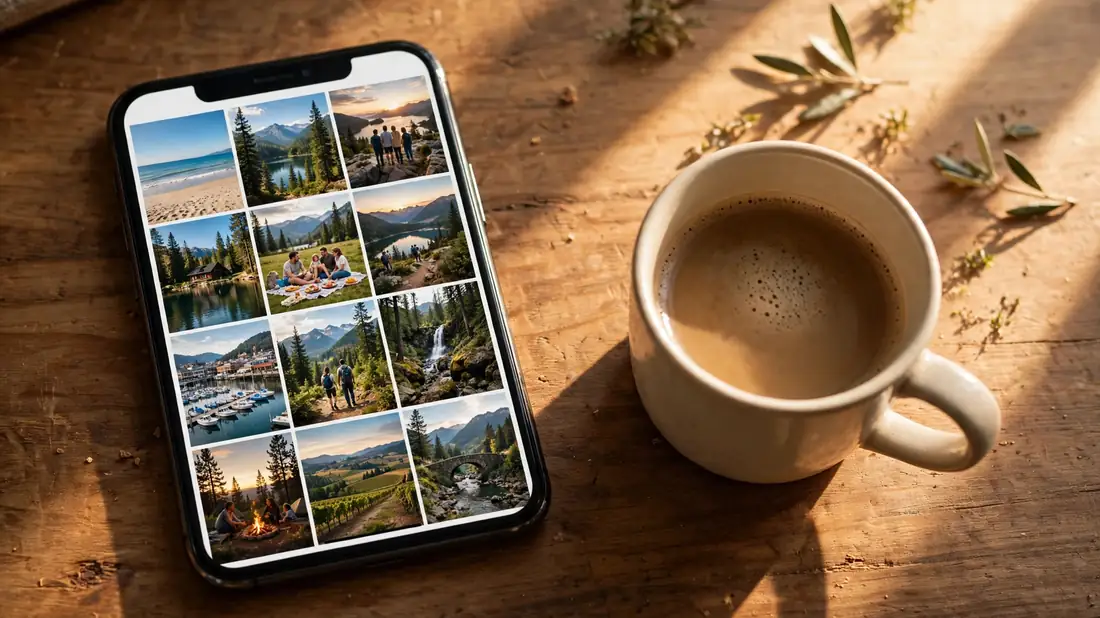
Check Google Photos, Dropbox, and every other cloud app
Think through every app on your phone that touches photos. Google Photos backs up automatically if you ever installed it and signed in. Dropbox, OneDrive, Amazon Photos, and even Facebook or Instagram uploads can hold copies you forgot about. Search your email for messages with photo attachments, and check any messaging apps where you shared the pictures. WhatsApp, iMessage, Messenger, and Telegram all store the photos you sent, often in full quality. Ask yourself where those photos went in the weeks before you deleted them, did you text any to family, post any online, send any to a printer service? Every place you shared a photo is a place it might still exist.

Dig through messages and shared albums
Photos you sent to other people don't disappear from their phones when you delete yours. This is one of the most overlooked recovery paths. Search your message threads for the conversations where you shared the pictures, in iMessage you can tap the contact's name and scroll the photos strip. Shared Albums in the Photos app are especially easy to forget: photos in a shared album aren't in your main library, and deleting from the library doesn't touch them. If you were in a shared album with family for a vacation or event, the photos are probably still there. It feels like a long shot, but it works more often than you'd expect.
- Search iMessage and WhatsApp for the contact you sent photos to
- Check Shared Albums in Photos (these live apart from your library)
- Look at group chats, photos shared there stay even if you deleted yours
- Ask family members to check their phones and shared albums
- Check AirDrop history: photos you received via AirDrop may still be there

Desktop recovery software: honest expectations
If every free avenue fails, you'll see ads for desktop programs promising to scan your iPhone and pull deleted photos back, names like Dr.Fone, Disk Drill, and iMobie PhoneRescue come up constantly. Here's the honest picture: these tools can sometimes find fragments of very recently deleted data, but they cannot reach into the encrypted storage the way Apple's own systems can, and success rates are low. Many free versions only show you previews and demand $50 to $90 to actually recover anything. Before paying a cent, try every method in this article first. If you do try software, use it on a computer you trust, never download from random sites, and treat "guaranteed recovery" claims as marketing, not fact.

Stop using the phone to protect what's left
When data is deleted, the phone doesn't erase it immediately, it just marks the space as available. New photos, downloads, and updates can overwrite that space and destroy anything still recoverable. So while you're working through these steps, keep phone use light. Don't shoot a burst of new photos, don't install big apps, and don't run a system update until you've tried recovery. This matters most in the first day or two after deletion. It's not a magic fix, if the photos are truly gone, nothing brings them back, but there's no reason to close doors before you've checked them all. Once you've exhausted the options below, you can go back to normal use.

Watch out for recovery-software scams
Desperate people get targeted, and deleted photos make people desperate. The classic scam is software that "finds" thousands of recoverable photos in a free scan, including photos that were never on your phone, then demands payment to restore them. Another is the pop-up ad claiming your iPhone is infected and offering a "certified technician" who needs remote access to your computer. Real recovery never requires someone else controlling your machine. Stick to official App Store apps and well-known companies with real support pages, and never pay for a tool that can't show you a genuine preview of your photos first. If a site's promise sounds too good to be true, it is.
- Never pay before seeing a real preview of your actual photos
- Avoid tools from unknown sites with no physical address
- Be wary of "guaranteed recovery" promises, none exists
- Don't grant remote access to your computer to a "technician"
- Never buy "activation codes" from coupon or key-reseller sites

Set up real backups in the next five minutes
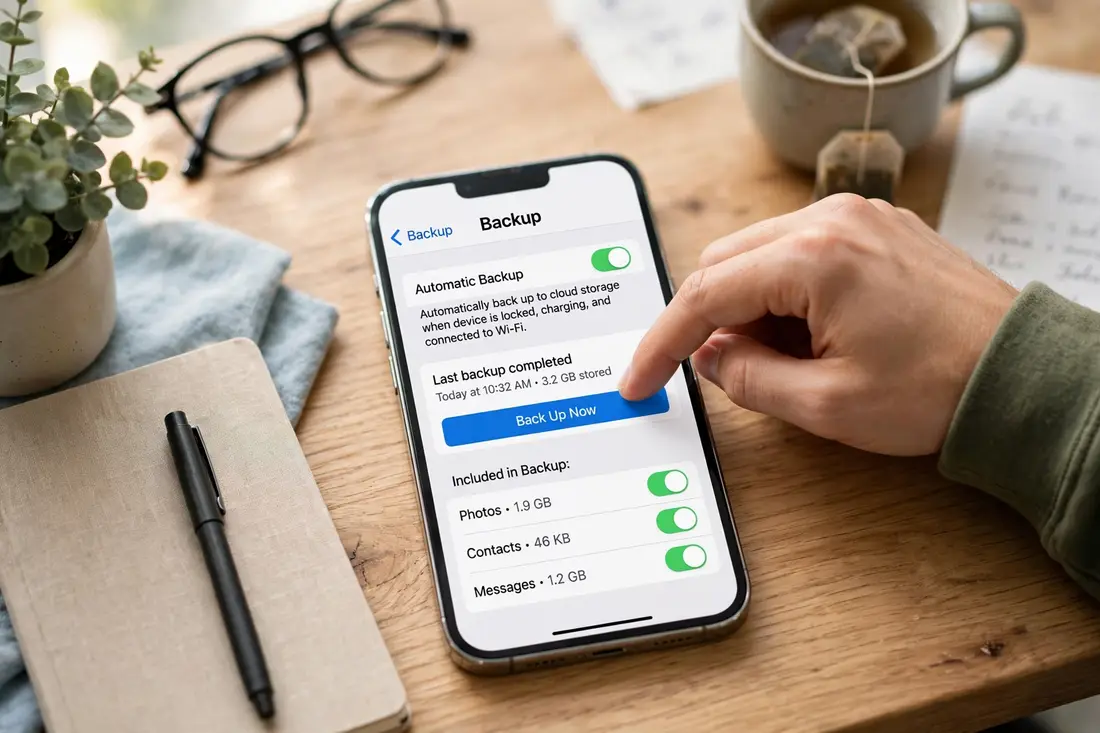
Whatever happens with your current photos, make sure this is the last time you go through it. Turn on iCloud Photos in Settings under your Apple ID, photos upload automatically, and deleted ones get the 30-day safety net. Also leave iCloud Backup switched on so your entire phone is protected. The free 5 GB iCloud tier runs out fast with photos, but Apple's 50 GB plan is $0.99 a month in the US, less than a cup of coffee for peace of mind. As a free second layer, install Google Photos and let it back up too; two copies in two places means one failure can never wipe you out. Do it right now, while the sting of this scare is fresh. Future you is counting on it.
What to do if nothing turns up
Sometimes the honest answer is that the photos are gone. If the Recently Deleted album is empty, iCloud has nothing, no cloud app backed them up, nobody you sent them to still has them, and reputable software finds nothing, then continuing to hunt mostly wastes time and money. Don't keep buying tools hoping for a miracle; the people selling miracles to panicked users are not your friends. Take the lesson instead: turn on the backups described above, and consider this the cheapest tuition you'll ever pay for data safety. It's a rough lesson, I know, lost photos hurt. But almost everyone who goes through it once becomes the person whose photos are the safest in the family.

A quick prevention checklist for next time
Prevention takes five minutes and works every time. Turn on iCloud Photos and leave it on. Keep iCloud Backup enabled. Add one free second backup, like Google Photos, so a single account problem can't wipe you out. Every few months, plug your iPhone into a computer and copy your favorite photos to a folder, external drives are cheap. Before deleting anything in bulk, glance at the Recently Deleted album and make sure the important stuff is safe elsewhere. And remember the golden rule of digital life: photos that exist in only one place don't really exist. Two copies, two places, zero panic. Your future self, the one holding years of memories, will be glad you read this article.

✅ Guide4U Checklist
- Open Photos, check Recently Deleted, recover what is there
- Sign in to iCloud.com and check Photos and its own Recently Deleted
- Check Google Photos, Dropbox, OneDrive, Amazon Photos
- Search message threads and Shared Albums for sent copies
- Ask family or friends you shared photos with
- Keep phone use light while you try recovery
- Turn on iCloud Photos plus a second backup afterward
Key Takeaways
- Recently Deleted is a 30-day safety net, use it first.
- Copies in messages and cloud apps survive your deletions.
- Two backups in two places means this never happens again.
Frequently Asked Questions
How long does the iPhone keep deleted photos?
Apple's Recently Deleted album keeps photos for 30 days after deletion, and that clock runs whether or not you have a backup. If you delete them from Recently Deleted too, or if the 30 days run out, Apple considers them gone from the device. That's when the other methods in this article (iCloud.com, message threads, other cloud apps) become your main hope. Act quickly: the longer you wait, the more likely the storage gets reused.
Do iPhone data recovery apps actually work?
Third-party apps from the App Store can't dig deep into your iPhone's storage, Apple's security rules don't allow it. Some desktop programs claim to scan the phone directly, and a few can occasionally recover very recently deleted files, but results are unreliable and many are overpriced or misleading. Treat any software that demands payment before showing you a real preview of your photos as a red flag. The free built-in methods above should always come first.
Can a phone repair shop recover my deleted photos?
No, and be very suspicious of anyone who says yes. Once a photo is removed from the Recently Deleted album and there was no iCloud or other backup, recovery from the device itself is extremely unlikely. Anyone claiming guaranteed recovery of old deleted photos is trying to sell you something. Save your money and instead turn on iCloud Photos now so this never happens again.
How do I turn on iCloud Photos so this never happens again?
Yes. Open Settings, tap your name at the top, tap iCloud, then Photos, and switch on iCloud Photos. Photos then upload to your iCloud account automatically. The free tier gives you 5 GB, which fills up fast, Apple sells 50 GB for $0.99 a month and 200 GB for $2.99 a month in the US. Keep iCloud Backup on too, so your whole phone is protected. It takes two minutes and removes the single biggest cause of photo loss: having no backup at all.
What did you think of this article? Share your opinion in the comments below — we would love to hear from you.